Turning Projector / Rear TV On
This guide explains how to power on the projector and rear TV in Mackey Hall using the wall touchscreen.
If you need the reverse process, see Turning Projector / Rear TV Off.
Power On Projector
- Go to the wall touchscreen in Mackey Hall.
- If you are not on the Homepage or the
Powerpage, press theHomeicon in the top-left corner. - If you are on the Homepage, press
Powerto open the power controls. If you are already on thePowerpage, continue to the next step.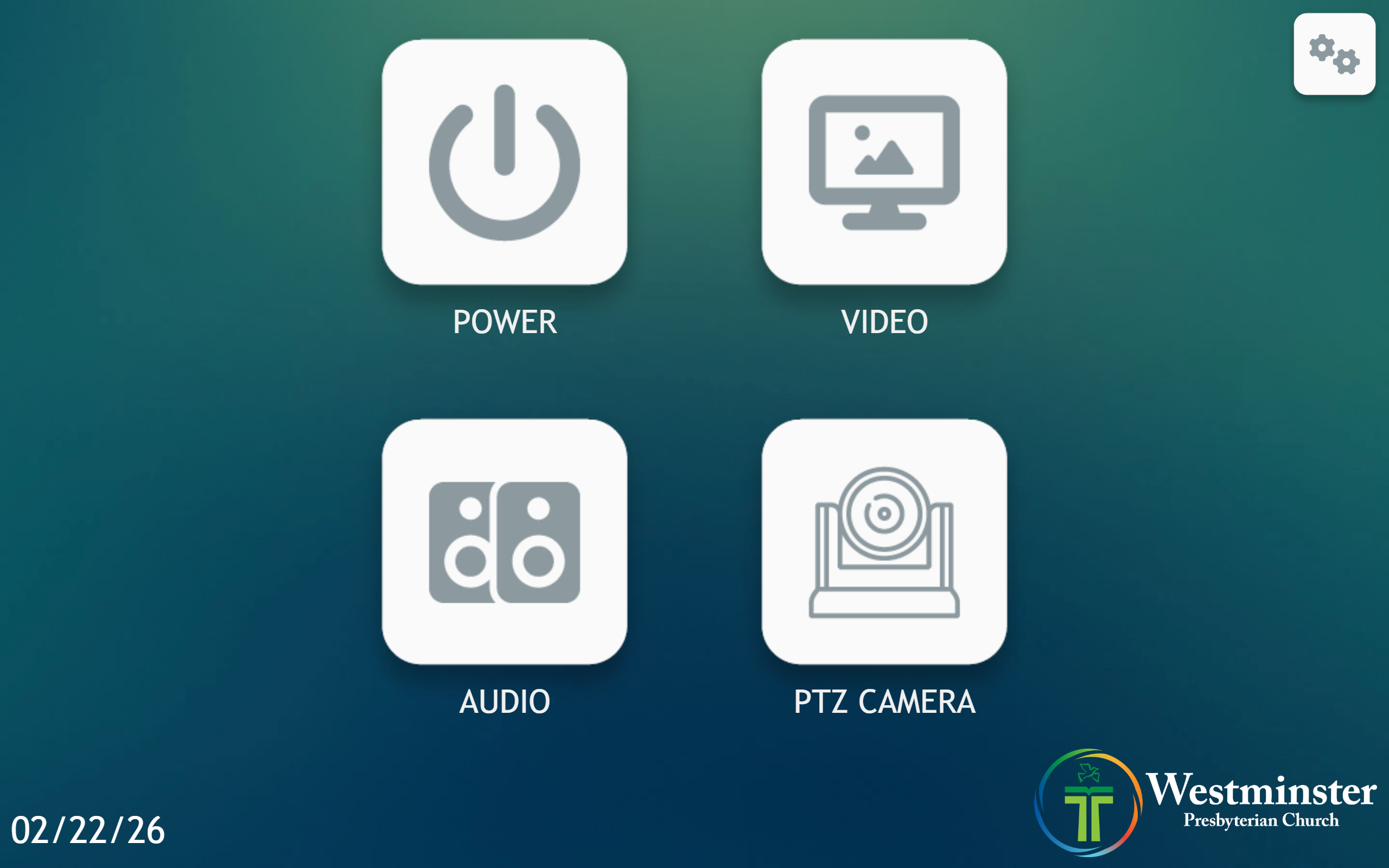 Press the
 Powerbutton on the homepage. - On the Power page, press
Projector Onto power on the projector.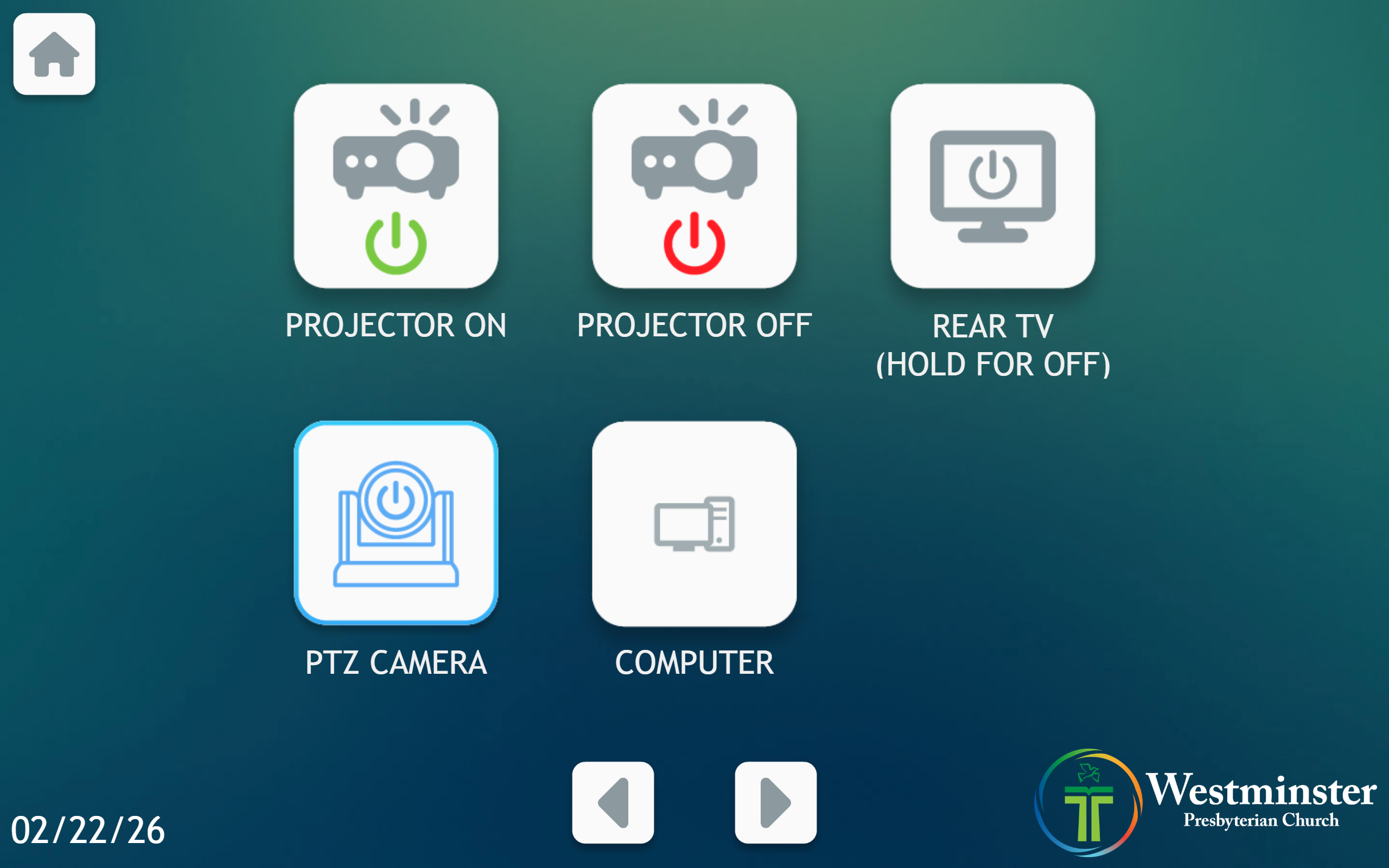 Press
Press Projector Onto power on the projector. - Allow about 30 seconds for the projector to fully start.
Power On Rear TV
- Go to the wall touchscreen in Mackey Hall.
- If you are not on the Homepage or the
Powerpage, press theHomeicon in the top-left corner. - If you are on the Homepage, press
Powerto open the power controls. If you are already on thePowerpage, continue to the next step. Press the Powerbutton on the homepage. - On the Power page, press
Rear TVto power on the rear TV. Press Rear TVto power on the rear TV. - Allow a few seconds for the rear TV to fully power on.