Bluetooth Pairing
This guide explains how to pair a Bluetooth playback device in Mackey Hall using the wall touchscreen.
If the sound system is not on, see Turning the Sound System On.
Start Pairing Mode (Two Ways)
Method 1: From the Audio Page
- On the wall touchscreen Homepage, press
Audio.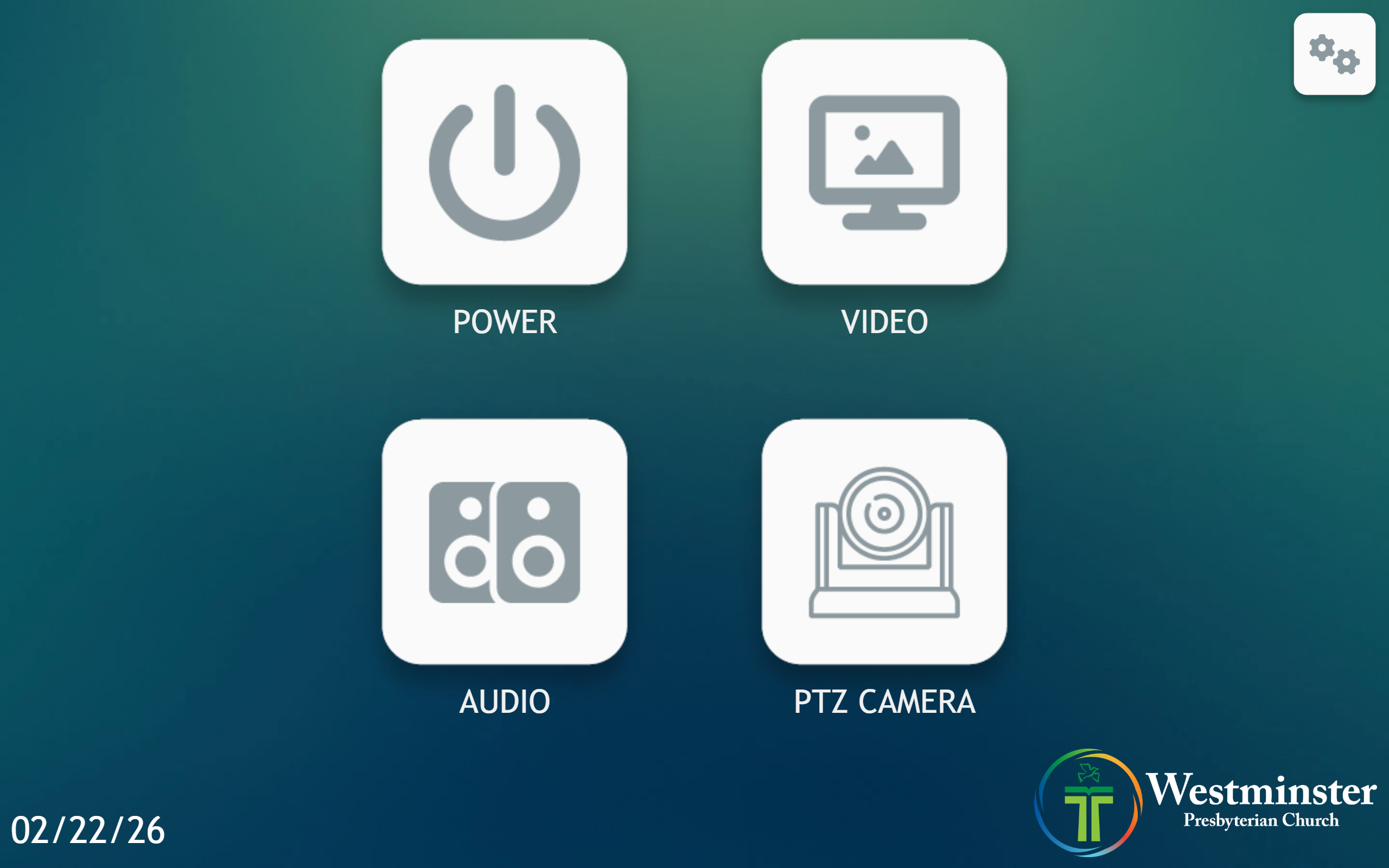
- On the Audio page, press
Bluetooth Pair.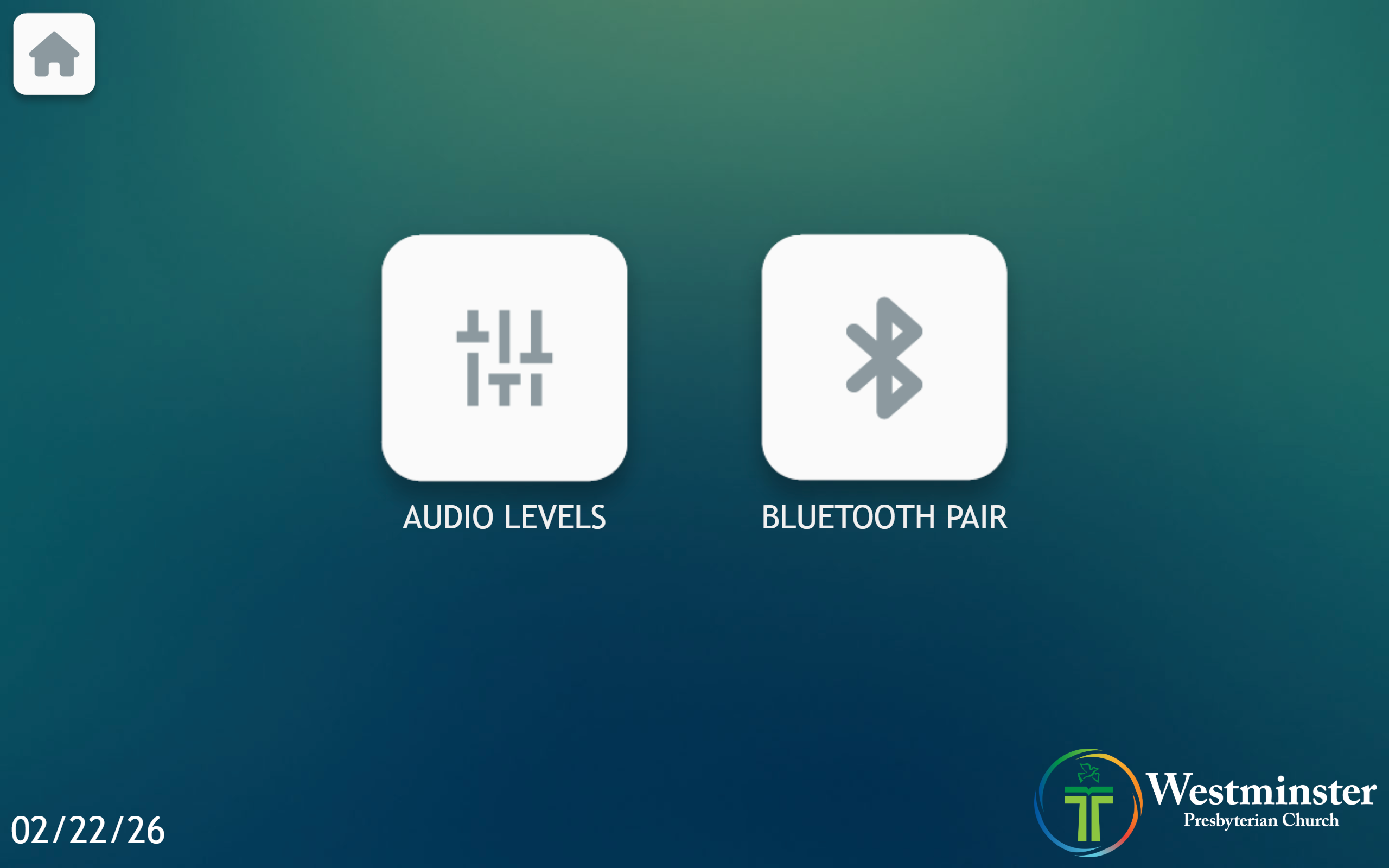
- Wait a few seconds for pairing mode to activate.
- If room speakers are unmuted, you should hear a beep when pairing mode starts.
Method 2: From Audio Levels -> Computer + Bluetooth Inputs
- On the Audio page, press
Audio Levels. - On Select a Preset, choose
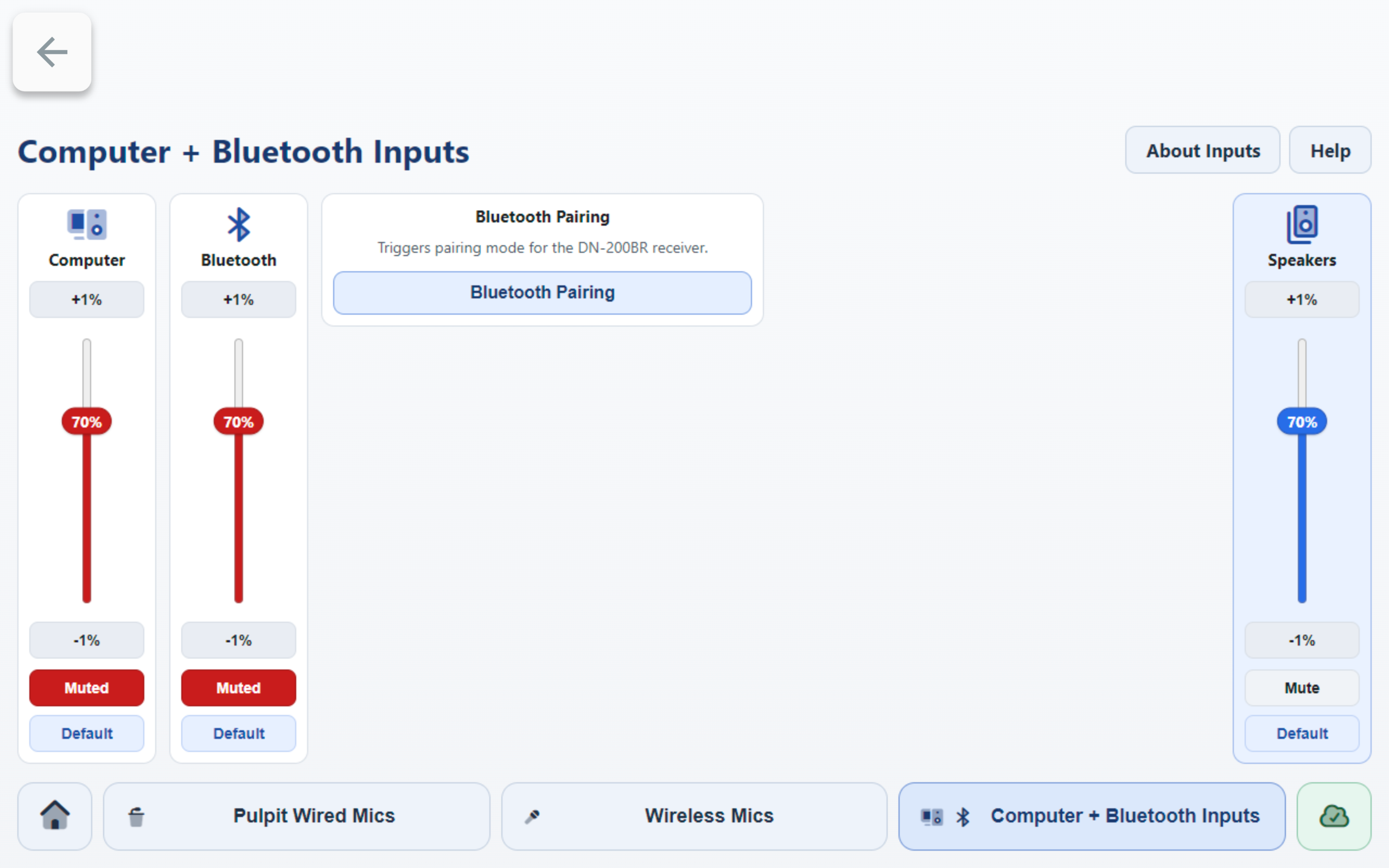
Computer + Bluetooth Inputs. - On that page, press
Bluetooth Pairing. - Wait a few seconds for pairing mode to activate.
- If room speakers are unmuted, you should hear a beep when pairing mode starts.
Connect Your Device
- On your phone, tablet, or computer, open Bluetooth settings.
- Select
DN-200BRfrom available devices. - Confirm the device shows as connected.
Route Bluetooth Audio to Speakers
- On the wall touchscreen Audio page, press
Audio Levels. - On Select a Preset, choose
Computer + Bluetooth Inputs. - In that preset, find the
Bluetoothchannel card. - If
Mutedis red, press it once to unmute. - Start playback and adjust
Bluetoothlevel with+1%,-1%, or the slider. - Use the
Speakerscard on the right (Master Output) for overall room output level.
Notes
- Pairing is for playback devices only.
- If pairing fails, press
Bluetooth Pairagain and retry from Bluetooth settings.